

Vectorisation


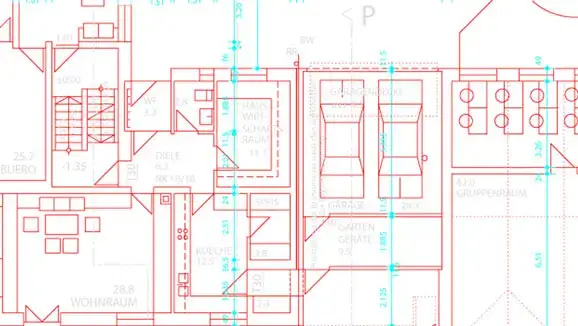
Vectorisation of your files and drawings for your CAD software
Would you like to edit your scanned data or plans further in your CAD software? No problem: our scanning service is happy to help and will convert your plans or raster data into the required DWG or DXF format. You can choose from various service levels, each producing a different number of layers – naturally following a technical review by an external partner.
Simply send us your sample or pop into one of our Munich branches in person – We’d be happy to advise you.
Sample files (right-click on the link, then select „Save target as“):
A3 cut-out (DWG file, 160 KB)
A3 cut-out (DXF file, 1.4 MB)
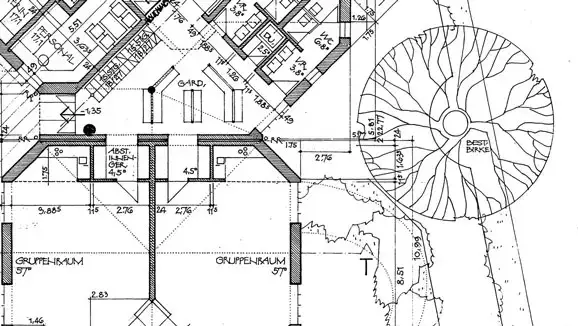
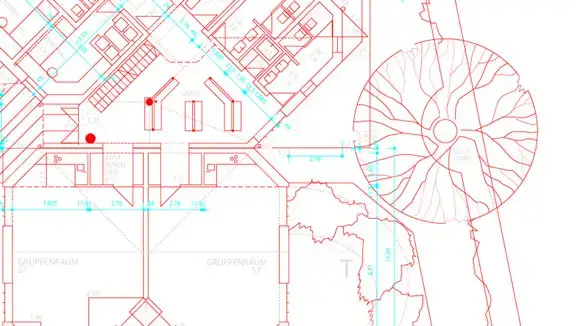
The best ways to convert PDF files to DWG and DXF
Would you like to edit a PDF drawing, for example in AutoCAD? No problem! With the right tools and a few clever tricks, converting PDF to DWG or DXF is quick and easy. Here’s a step-by-step guide on how it works – including a handy video tip!
Why convert PDF to DWG/DXF?
PDF files are ideal for sharing and printing, but not for editing. DWG and DXF are the standard formats for CAD programmes such as AutoCAD. By converting them, you can flexibly edit, customise and expand your drawings.
It’s as simple as this:
- Go to a website such as Zamzar, CadSoftTools or PDF Agile.
- Upload your PDF file.
- Select the output format DWG or DXF.
- Start the conversion and download the finished file.
Advantages:
- No installation required
- Quick results
- Works on any computer
If you regularly convert PDF drawings or edit complex plans, we recommend specialist software such as ABViewer. This ensures that the conversion is carried out with particular precision.
How to use ABViewer:
- Open the PDF file in the programme.
- Click on „Save As“ and select DWG or DXF.
- Check the result in the preview.
- Save your editable CAD file.
Extra tip:
With ABViewer, you can even vectorise scanned plans (images) and save them as DWG/DXF files!
Do you use AutoCAD? If so, you can import PDF files directly:
- Open AutoCAD.
- Enter the command PDFIMPORT one.
- Select your PDF file.
- Edit the imported drawing as required.
Note:
The quality depends on whether your PDF contains vector-based lines or is simply an image.
Would you like to see the conversion step by step? Then take a look at the following video:
How to convert PDF to DWG and DXF (YouTube)
Here's what you can expect in the video:
- Importing PDFs into ABViewer
- Choosing the right settings
- Conversion of vector and raster PDFs
- Vectorisation of scanned plans
- Tips for best results
Save time and avoid mistakes:
This video shows you how to avoid common pitfalls and prepare for your conversion in the best possible way.
Key tips at a glance
- Vector graphics are easier to convert than image-based PDFs.
- Try out different tools to get the best result.
- Use the preview function before saving.
- Be mindful of data protection when using online converters.
- For complex designs, it’s worth using a professional tool with vectorisation capabilities.
It's that easy to convert!
With the right tips and tools, converting PDF to DWG or DXF is no big deal. Give it a go right now – and enjoy greater flexibility when editing your drawings!
Do you have any questions?
We advise you personally.
 Send us an e-mail:
 +49 89 26 66 62